
Most ecommerce traffic now arrives on phones, often on a mobile connection that is slower and less reliable than the office Wi-Fi a developer tests on. A page that feels fine on a laptop can take long enough on a phone for the shopper to give up before the product appears. The store owner never sees that happen, because the people who leave don’t send feedback. They simply buy somewhere else.
This guide explains where the time goes, how to measure it and what to fix first. It doesn’t require technical skill to follow, although a developer will be needed for some of the fixes. The aim is to help you ask the right questions and to know which problems are worth paying for.
Why phones are different
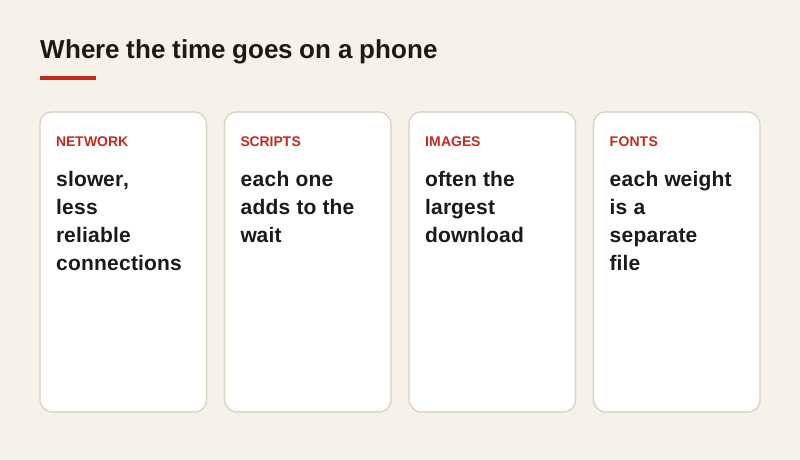
Phones have slower processors and less memory than laptops, and they often load pages over connections that drop or slow down while someone is walking, commuting or standing in a store. Scripts that run quickly on a desktop can take a noticeable time to run on a phone, and each extra script adds to that delay. A store tested only on a fast desktop connection can look healthy while the mobile experience is poor.
Test the store on a real phone, or on a mobile test profile in a browser that simulates a slower connection. Look at the product page, the collection page and the checkout. Those are the pages where speed decides whether a sale happens. A slow homepage is frustrating, but a slow product page loses the sale itself.
Measure what the shopper experiences
A single speed score doesn’t tell you much. A score of 62 out of 100 could mean many different things, and the number changes with each test. Look instead at what a shopper notices: how quickly the main content appears, how soon the page responds when someone taps a button, and whether the layout jumps around while it loads. Those three moments decide whether the page feels fast.
Google’s PageSpeed Insights and the Chrome User Experience Report both show real-world data for your pages, collected from people who visit your site. Use them to find which pages are slowest, and check the results for your most important product and collection pages. Lab tests are useful for diagnosing a problem; real-world data tells you whether the problem is affecting shoppers.
The usual causes
Most slow ecommerce pages suffer from the same few problems, and it helps to know them before you start. Each one can be checked in an afternoon.
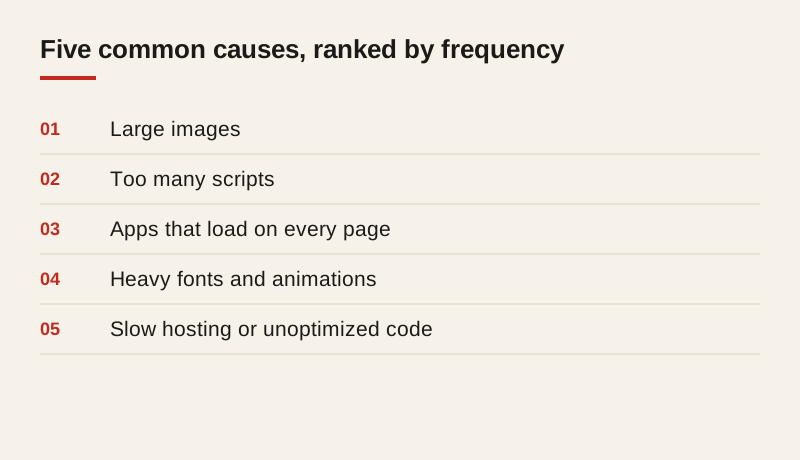
- Large images. Product photos uploaded at full size and shown much smaller. A 4000-pixel photo shown in a 400-pixel box makes the phone download ten times more than it needs. Compress them, and serve the sizes each screen needs.
- Too many scripts. Tracking, chat, reviews, popups and promotional tools, each adding its own code to every page. Many of these tools are installed for a campaign that ended years ago, and they still run on every visit.
- Apps that load everywhere. A theme app or plugin that runs on every page, even where it isn’t used. A review widget that only matters on product pages shouldn’t slow down the cart or the blog.
- Heavy fonts and animations. Several font families and many weights, or motion effects that block the page while it loads. Each font file is a separate download, and an animation that waits for a script can delay the content behind it.
- Slow hosting or unoptimized code. Less common than the others, but it can add a delay before anything loads. If the server takes a long time to respond, no amount of image work will fully fix the problem.
The order to fix things in
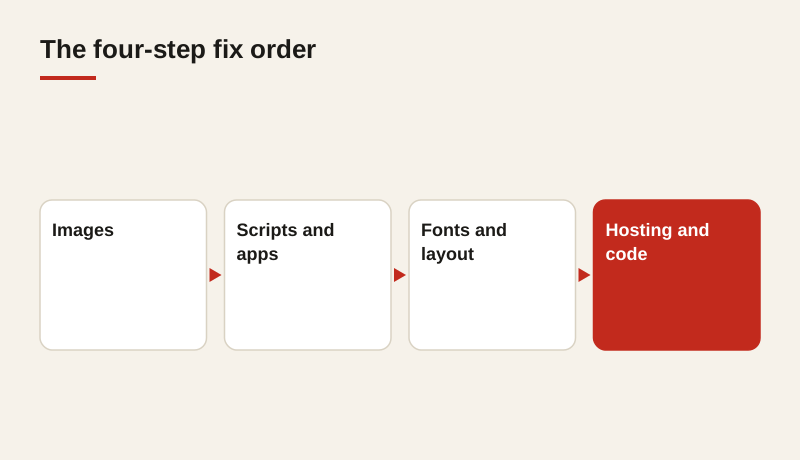
Fix the heaviest problems first. In most stores, that means images, then scripts, then apps. The order matters because images usually account for the largest share of the page weight, so they give the biggest improvement for the least risk. Scripts and apps take more care, because removing one can break a feature that someone depends on.
- Images. Resize and compress the largest product photos, and make sure images below the fold load only when they’re needed. Start with the bestsellers, because they receive the most traffic.
- Scripts and apps. Remove apps you don’t use. Load the rest after the main content has appeared, where that’s possible. Ask a developer to check which scripts run on each template, and to remove the ones that don’t belong there.
- Fonts and layout. Limit the number of font weights, and reserve space for images so the page doesn’t jump while it loads. A page that shifts as it loads feels broken, even if it finishes quickly.
- Hosting and code. If the basics are fixed and the page is still slow, look at the server response and the theme code. This is the stage where a developer is most useful, and the earlier steps often make it easier.
Check the result on real devices
After each change, test again on a phone. Look at the same pages and compare the results with the numbers you recorded before the change. A fix is only useful if the page feels faster to the shopper, and that’s the test that counts. A tool can say a page improved while the shopper still waits for the main image.
Keep a simple log of changes, with the date, the page and the result. When sales rise or fall, the log will help you understand whether the speed work was part of the reason.
What speed does to sales
A slow page loses shoppers in a way that’s easy to miss. Each second of waiting makes some people leave, and the people who leave are often the ones most likely to buy, because they arrived with a clear intention. Measuring the add-to-cart rate for a page before and after a speed fix shows whether the work is paying off.
Speed also affects search. Google takes the experience of a page into account when it decides how to show results, so a page that is slow on phones can lose visibility as well as sales. That makes speed a shared concern for the marketing team and the development team, not a technical detail for one of them alone.
Keep it fast after launch
Speed slips over time. Every new app, banner and tracking tag adds weight, and nobody notices the cumulative effect until the store has become slow. Review the store’s speed every month, and check any new app before it’s installed. Ask what the app adds, what it loads on each page, and whether it can be limited to the pages that need it.
Agree a simple rule with your team: nothing goes live that makes the main product pages slower. It sounds obvious, but it’s the rule most often broken, usually with good intentions, such as a new campaign or a new review tool. A short review before each change keeps the store fast without slowing the team down.
Common mistakes
A few mistakes come up often. The first is trusting a single speed score and ignoring what the shopper sees. The second is compressing images once and then uploading full-size photos again the following month. The third is leaving old apps installed after the campaign that needed them has ended. The fourth is testing only on the office computer, which hides the problems that shoppers on phones experience every day.
Another common mistake is fixing the homepage and leaving the product pages untouched. Shoppers arrive on product pages from search, from social posts and from email, and they often never see the homepage at all. Start the speed work where the sales are.
Where to start
Choose your five most visited product pages. Test each on a phone, fix the largest images and remove any apps you don’t use. Measure the speed and the add-to-cart rate for a month, and use those results to decide the next step. If the results improve, extend the same work to the rest of the catalog, and then to the collection pages and the checkout.
If you want a clear picture of where your store loses time, our analysis includes a speed review of your key templates, and it ends with a written list of fixes in the order they will help most. You’ll know what the work involves before you decide anything about price.
Frequently asked questions
What is a good speed for an ecommerce page on a phone?
There is no single number that suits every store. Focus on whether the main product image and buying button appear quickly and whether the page responds to taps without delay. Compare your results with your own baseline over time.
Which speed tool should I use?
Start with Google’s PageSpeed Insights, which shows both lab and real-world data. Use the real-world data to find the pages shoppers actually struggle with, and the lab results to diagnose causes.
Will speed improvements change my rankings?
Speed is one of many signals, so it rarely changes rankings on its own. It does affect whether shoppers stay and buy, which is often the bigger gain.
How often should I check speed?
Check your key pages monthly, and check any time you install an app or change the theme. Speed slips gradually, and small additions add up.