
Shopify makes it easy to launch a store, and it makes it easy to create SEO problems without noticing. Duplicate pages, generic titles and collections that don’t say anything useful are common, and they build up quietly. A store can run for two years with the same mistakes repeated across hundreds of products, and nobody realizes how much visibility those mistakes are costing.
This checklist covers the Shopify settings and page types that matter most. It’s written for store owners and their teams, so you don’t need to be a developer to work through it. Go through it in order, and fix the items on your highest-value pages first, because a fix on a bestseller usually matters more than a fix on a page nobody visits.
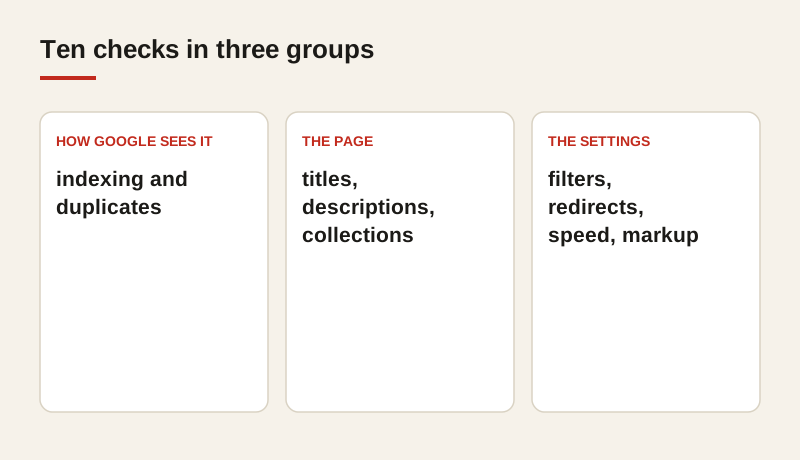
1. Check how Google sees your store
Open Google Search Console and look at the pages report. Look for pages that are “discovered but not indexed,” pages with errors and pages Google has chosen not to index. These show you where the store is leaking visibility. A product that Google has found but chosen not to index will never appear in search, no matter how good the copy is.
Read the reasons carefully. Some pages are excluded because they’re duplicates, some because they redirect, and some because the store is publishing thin pages that Google doesn’t think are worth keeping. Each reason points to a different fix, so don’t treat the list as one problem.
2. Review your product titles
Shopify uses the product name as the default title tag, and that name is often too short or too vague. A product called “Classic” or “Model 3” tells a search engine nothing, and it tells a shopper even less when they see it in a results page.
Rewrite titles so they name the product, state what it’s for and include the main search term once. A title such as “Cast Iron Skillet for Searing and Oven Use, 12 Inch” does more work than “Skillet 12.” Keep titles under about 60 characters so they aren’t cut off in search results, and check that every product has a title of its own.
3. Write unique meta descriptions
Each product and collection should have its own description. Shopify can generate descriptions automatically, but the generated text is often thin, and it sometimes repeats the same phrase across many products. Duplicate descriptions make the store look like a template, and they give Google no reason to prefer one product page over another.
Write a short sentence for each important page. It should say what the buyer gets, and it can mention one benefit that matters to them, such as delivery time, fit or a guarantee. You don’t need to fill every field for every product on day one. Start with the bestsellers and work down.
4. Watch for duplicate product pages
Shopify lets the same product sit in several collections, and each collection can create its own address for the product. Those addresses can look like duplicate content to a search engine. The fix is the canonical setting, which tells Google which version is the main one.
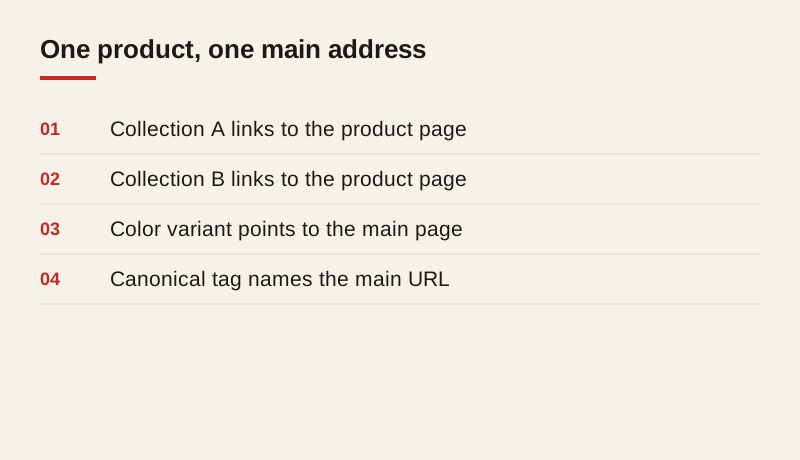
Check that the canonical tag on every product points to the main product address. Check that variants, such as colors or sizes, don’t create separate pages that compete with each other. If two variants deserve their own page because people search for them separately, give them distinct titles and content. If they don’t, let the main product page carry the search.
5. Structure your collections
Collection pages often rank for broader searches, such as “cast iron skillets” or “running shoes for flat feet.” That makes them some of the most valuable pages in the store, and they’re also the pages most often left as a bare grid of products.
Add a short introduction at the top of each important collection. Write it for the buyer, with a clear heading that names the category. Explain what the collection contains, how the products differ and which one suits which need. Two or three short paragraphs are enough. Don’t stuff the page with keywords, and don’t hide the text at the bottom where nobody reads it.
6. Fix your navigation and internal links
Internal links tell Google which pages matter, and they help buyers move through the store. Link from guides and collections to the products they recommend, and link back from products to the guides that explain them. A buyer reading a buying guide should be able to reach the product in one click.
Check that the main menu links to your key collections, and that none of the links lead to an error page or to a collection that has been deleted. Old menu items are a quiet source of broken links, and they waste the attention Google gives to the rest of the site.
7. Check your filter and search pages
Shopify’s filters can create thousands of near-identical addresses. A collection filtered by color, size, price and brand can produce a huge number of pages, most of which show almost the same products. If Google indexes them, the useful pages get diluted among the copies.
Decide which filter pages should be indexed, and make sure the rest are either blocked or canonicalized back to the main collection. Most stores only need a handful of filtered pages to be indexed, usually where a filter matches a real search, such as “waterproof hiking boots.” Ask a developer to check the robots settings and canonical tags if you’re not sure how your theme handles them.
8. Clean up redirects and deleted products
When you delete a product, its address should redirect to the closest equivalent, not return an error. A product that has been sold for years may still have links from other sites, and each of those links is a small amount of trust that is lost when the page returns nothing.
Check redirect chains too. A redirect that leads to another redirect, and then to the final page, slows the visit and wastes search signals at each step. Replace chains with a single redirect from the old address to the final one. If a product is gone for good and has no equivalent, redirect it to the collection it belonged to, not to the homepage.
9. Improve images and speed
Compress product images, give every image a descriptive alt text, and use the correct image sizes for phones. A photo that is 4000 pixels wide, shown in a box 400 pixels wide, is one of the most common reasons a Shopify store is slow on a phone.
Alt text should describe what the image shows, such as “Cast iron skillet with a helper handle, seen from above.” It helps shoppers using screen readers, and it helps search engines understand the page. Check your largest pages first, because they usually carry the heaviest images.
10. Add structured data
Shopify themes often include basic product markup, but it is often incomplete. Structured data is a hidden layer that tells search engines the name, price, availability and reviews of a product in a standard format. When it’s correct, it can make the product’s listing more informative in search results.
Check that each product has its name, price, availability and review data marked up correctly. Test a few pages with Google’s Rich Results Test, and fix any warnings that appear on your bestsellers. You don’t need perfect markup on every page to start, but the products that earn the most should be correct.
Order of work
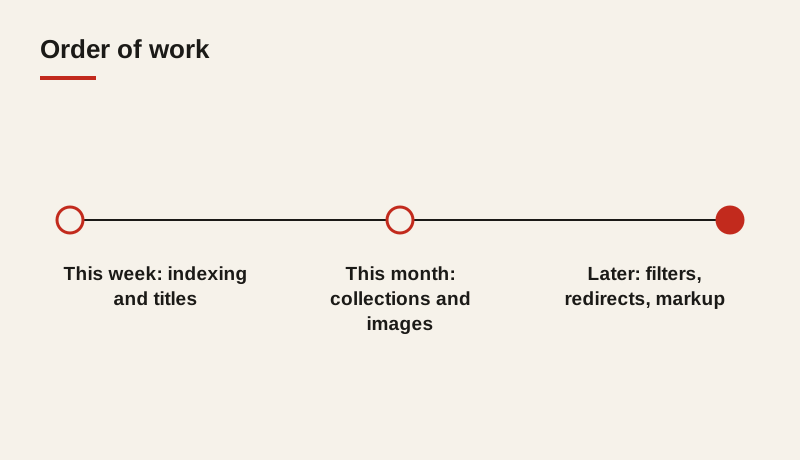
Don’t try to do all ten steps across the whole store in one go. Start with the pages that earn the most, and widen the work once you’ve seen results. A sensible order is to fix indexing and titles first, because they are quick and they affect every product. Then move to collections and internal links, which take more writing. Filters, redirects and structured data can follow, once the main pages are working.
Keep a simple record of what you changed and when. Without it, you won’t be able to tell which fix improved the results. Note the page, the change and the date, and check visits and sales for that page a few weeks later.
Common mistakes to avoid
A few mistakes come up on almost every Shopify store we review. The first is leaving the default product titles in place. The second is writing the same description for a whole range of products. The third is publishing collections with no text at all, and relying on the products to carry the page. The fourth is letting filter pages index without a plan. Each one looks minor on its own, but together they weaken a store’s visibility across its whole catalog.
Another mistake is treating the checklist as finished once it’s done. Stores change constantly. New products arrive, old ones are removed, and apps add their own pages. Run the checklist again every quarter, or whenever you add a new collection or install a new app, and you’ll catch problems before they grow.
Where to start
Pick your top ten products and top five collections. Work through steps two, three and five on those pages first, then measure visits and sales for a month. The results show you whether the work is worth extending to the rest of the store. If the bestsellers improve, move on to the next tier of products and the remaining collections, using the same steps.
If you’d rather have someone check the store for you, we start every engagement with an analysis that covers these ten points and more. It ends with a written plan in order of impact, so you can see what to fix first before you decide anything else.
Frequently asked questions
Do I need a developer to work through this checklist?
Many items can be handled in the Shopify admin, such as titles, descriptions and collection text. Redirects, canonical settings and robots rules may need a developer, especially on a heavily customized theme.
How often should I run the checklist?
Run it quarterly, and again whenever you add a large collection, install a new app or change your theme. Stores change constantly, and new problems tend to appear after those changes.
Which fix should I do first?
Start with indexing and product titles on your bestsellers. They’re quick to check and they affect the pages that earn the most visits and sales.
Does Shopify handle SEO automatically?
Shopify provides a solid base, but it doesn’t write good titles, unique descriptions or useful collection text for you. Those are the parts that most stores still need to do themselves.